

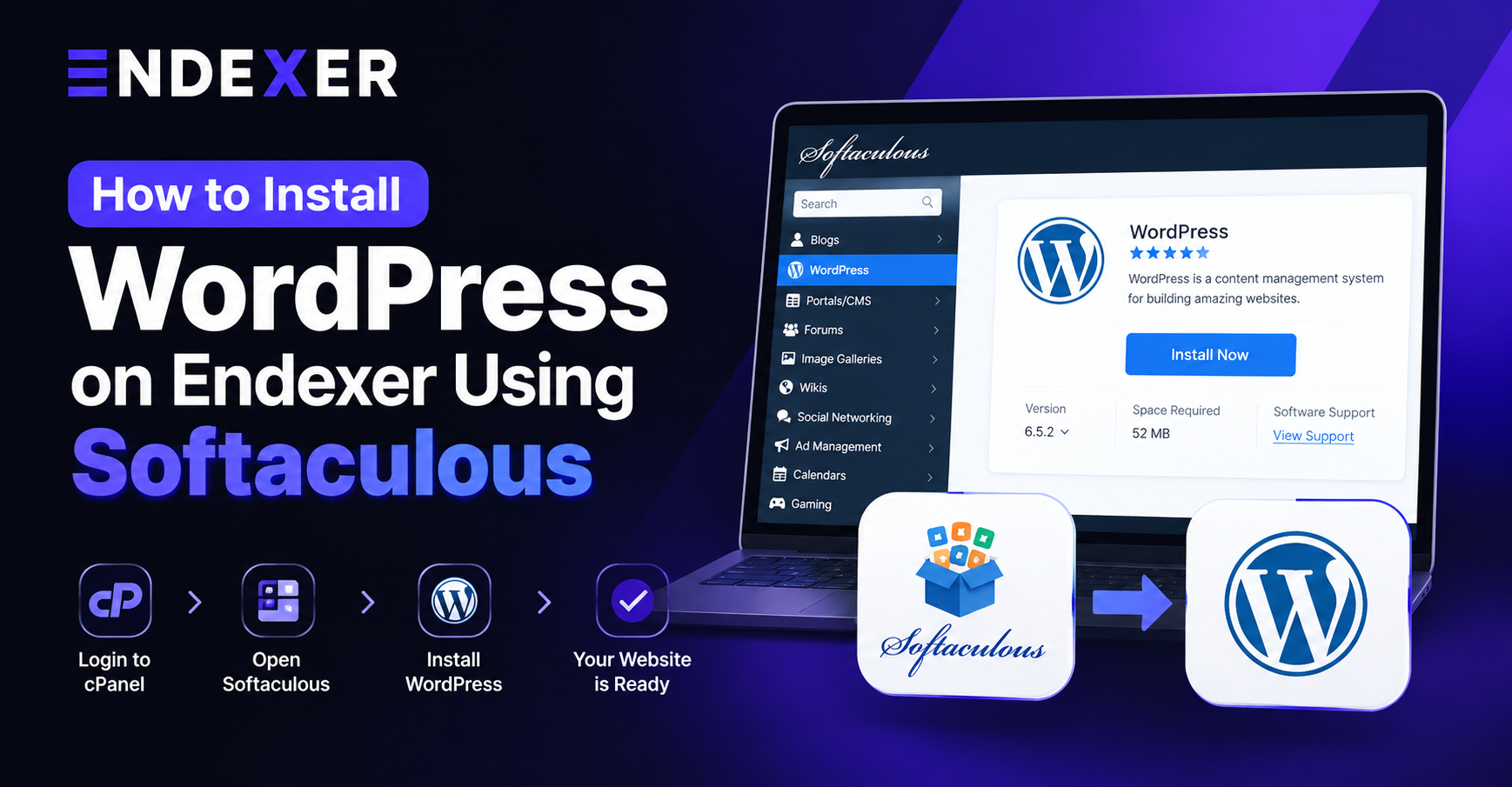
Getting a new website online does not have to involve uploading files or creating a database by hand. With Endexer hosting, you can install WordPress through Softaculous in just a few minutes.
This guide explains the setup from start to finish, including the choices that help keep your new site secure and ready to launch.
Before you begin
Make sure your domain is added to your Endexer hosting account and points to the correct hosting service. You will need an active hosting plan and access to its control panel. If the domain is new, allow time for DNS changes to take effect before testing the site.
1. Open your Endexer hosting control panel
Sign in to the Endexer client area and open the control panel for the hosting account where you want WordPress installed. In the Software section, select Softaculous Apps Installer. Depending on the control-panel layout, it may also appear as Softaculous or WordPress Manager.
2. Select WordPress in Softaculous
Choose WordPress from the available applications. On the overview page, select Install Now to open the installation form.
3. Choose where WordPress will be installed
Select HTTPS when your domain has an SSL certificate. This is the recommended choice for a live website because it encrypts visitors’ connections.
Select the domain for the new website. Leave In Directory empty to install WordPress directly at yourdomain.com. Enter a folder name only when the site should be placed in a subfolder, such as yourdomain.com/blog.
4. Add your site information
Enter a site name and a short description. Both can be updated later from the WordPress dashboard. Choose the current stable WordPress version unless you have a specific compatibility need.
5. Create a secure administrator account
Set an administrator username, a strong password, and an email address you check regularly. Avoid predictable usernames such as admin or your domain name. A password manager is the safest place to store the login details.
6. Review language, theme, and updates
Select your preferred dashboard language and choose a starter theme if you wish. You can change the theme later without losing your pages or posts. Enable the update options that fit your maintenance process, and keep regular backups before making major changes.
7. Complete the installation
Check the domain, directory, and administrator email one last time, then click Install. Softaculous will create the WordPress files and database automatically.
Once it finishes, you will see links to the new website and to the WordPress login page, which usually ends in /wp-admin.
After WordPress is installed
- Open the website in a private browser window and confirm it loads over HTTPS.
- Set the site title, tagline, and timezone under Settings.
- Remove unused default posts, pages, themes, and plugins.
- Install only trusted plugins that the site needs.
- Create a full backup before major design or content changes.
- Set up your SEO plugin and submit a sitemap when the site is ready for search engines.
Need help?
If Softaculous shows an error, check that the domain is assigned to the correct hosting account and that there is sufficient disk space. For account-specific help, contact Endexer support with your domain name and a screenshot of the error message—never your WordPress password.
Your WordPress site is now ready for you to customize, add pages, and begin publishing.